Documentation › Look after a site
Bring a site over from WordPress
Move a WordPress site's posts, pages, images and SEO details into a Galley site in four steps, as changes you check before anything goes live.
For people who look after a site. The guided move reads a WordPress site — its address, or an export file — and brings its posts, pages, images and search details into this site as pending changes. Nothing on the old site changes, and nothing goes live until you publish. Status: new, in final checks. The docs ran it against the importer's own invented WordPress site on this computer, not a real one.
Link to this section: Bring it over
- On Site home, under Moving from WordPress?, press Bring your WordPress site.
- Where it is: paste the site's address (it's checked as you type), or drop an export file — here's how to get one explains WordPress's Tools › Export. Press Continue.
- What comes across: where posts and pages will go, how many there are, and anything to decide — for example Posts could go into Lookbooks or Journal. Which one should they go into? (the likely answer is marked Suggested). It also lists pages built with a page builder, what happens to your search rankings, and What stays behind. Press Bring over 12 entries (the number is yours).
- Bringing it over shows each step as it happens: reading the old site, downloading images, posts, pages.
- The report says what arrived and what to do next.
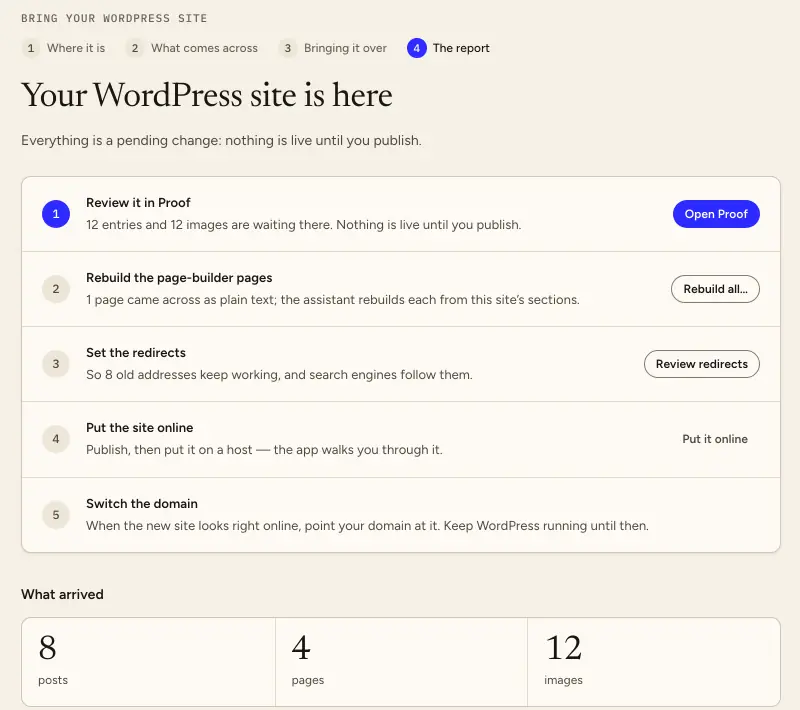
Link to this section: After the import
- Review it in Proof — every post, page and image is a pending change. Discard what you don't want.
- Rebuild the page-builder pages — pages made with Elementor or similar come across as plain text, so nothing is lost. Rebuild all… (or Rebuild this page) asks the assistant to rebuild each from this site's own sections, using its words exactly; it shows the cost first, and each result waits in Proof. This needs the assistant's key; the docs haven't run it.
- Set the redirects — Review redirects opens the old addresses, ready to add, so old links and search results keep working (Move a page without breaking links).
- Put the site online — publish, then put it online.
- Switch the domain — when the new site looks right online, point your domain at it. Keep WordPress running until then.
Link to this section: What doesn't come across
Comments, user accounts, the theme, menus and widgets, plugin settings, revisions and trashed items stay in WordPress. The report says what needs a person: shortcodes left in the text, links to pages that weren't brought over, descriptions written from an opening paragraph.
Link to this section: What can go wrong
- The address is refused. The site may block reading its content; use an export file instead.
- Drafts and private pages are missing. Reading them needs a WordPress login; the developer version can do it — Moving from WordPress, for developers.
- You stopped part-way. What already arrived stays as pending changes, to keep or discard in Proof.