Documentation › Look after a site
Put the site online
Give the site a real address on Cloudflare or Vercel in four steps, put published versions live, and share a preview link before you publish.
For people who look after a site. Galley can put the site at a real address on Cloudflare or Vercel — even a site that exists only on your computer. Status: Cloudflare built and verified on the real service by the people who built it; Vercel built, not yet verified on the real service. The docs walked through the steps up to the access key and did not contact either host.
What's live is what you've published: putting the site online builds the last published version, never the changes still waiting in Proof.
Link to this section: Set it up
- Press Put this site online (on Site home, Online, or the status bar).
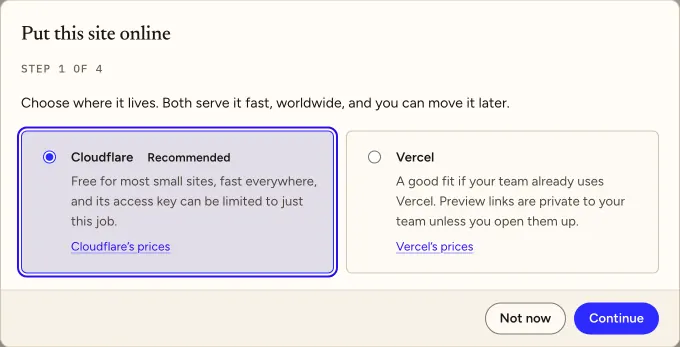
- Where the site lives: choose Cloudflare (recommended) or Vercel, then Continue.
- Connect Cloudflare (or Vercel): make an access key on the host's site and paste it in Access key, then Connect. For Cloudflare, Open Cloudflare's page opens its Create Token form already filled in; choose the account under Account Resources, then Continue to summary and Create Token, and copy the key — it's shown once. The key is checked with the host before it is saved, kept on this computer only, and afterwards only its last four characters are shown.
- Choose the account (or team), then Name it — the project name becomes part of the address — and Put it online.
The address appears when it's done. Put changes live every time I publish makes each publish go live by itself; off, you choose when with Put live. Galley also offers to use the new address as the live site Proof compares against.
Link to this section: Share a preview link
In Proof, Share a preview link puts the site as it is now — unpublished changes included — at an address of its own. On Cloudflare anyone with the link can open it; on Vercel, visitors must sign in to your team unless you turn its Deployment Protection off.
Link to this section: See what's live
Online in the sidebar lists every deployment made from this computer. The status bar says when published versions aren't live yet.
Link to this section: Your own domain
Galley puts the site at the host's own address (…workers.dev or …vercel.app). To use your own domain, add it on the host — Galley doesn't change domain or DNS settings — then set it in Settings › Addresses › Live site.
Link to this section: What can go wrong
- "…didn't accept the access key." The key was deleted, expired or mistyped; make a new one and paste it in the key step.
- "This Cloudflare account doesn't have a workers.dev address yet." Open Workers & Pages in Cloudflare's dashboard once and choose one.
- "Nothing has been published yet." Publish first; a preview link works before that.
- "The site's own build stopped with a problem." The live site is unchanged. The last lines of the build are under Technical details — a job for whoever looks after the site's code.
Costs are the host's: see Cloudflare's and Vercel's prices from the first step. Developers: Deploying, for developers.