Documentation › Edit a site
Add images and video
Upload pictures, videos and documents, make an image or a video from a description, and use them on a page.
For people who edit a site. Media holds every picture, video and document the site uses. A file you add is a change like any other: it goes live when you publish.
Link to this section: Upload
- Open Media in the sidebar.
- Press Upload, drop files anywhere on the screen, or paste a picture. Each file can be up to 25 MB.
- Choose a file to see its details: its address on the site, size, folder, and whether it is new or changed.
To use a picture on a page, choose it from the picture field in the form, or click the picture on the page with Click to edit.
Link to this section: Make an image from a description
- In Media, press Generate an image.
- Describe the image — what's in it, the mood, the setting. Style is optional. Choose a Shape and How many.
- Press Make images. Choose the one you like (Make new ones tries again), give it a name under Name it, then Save to media.
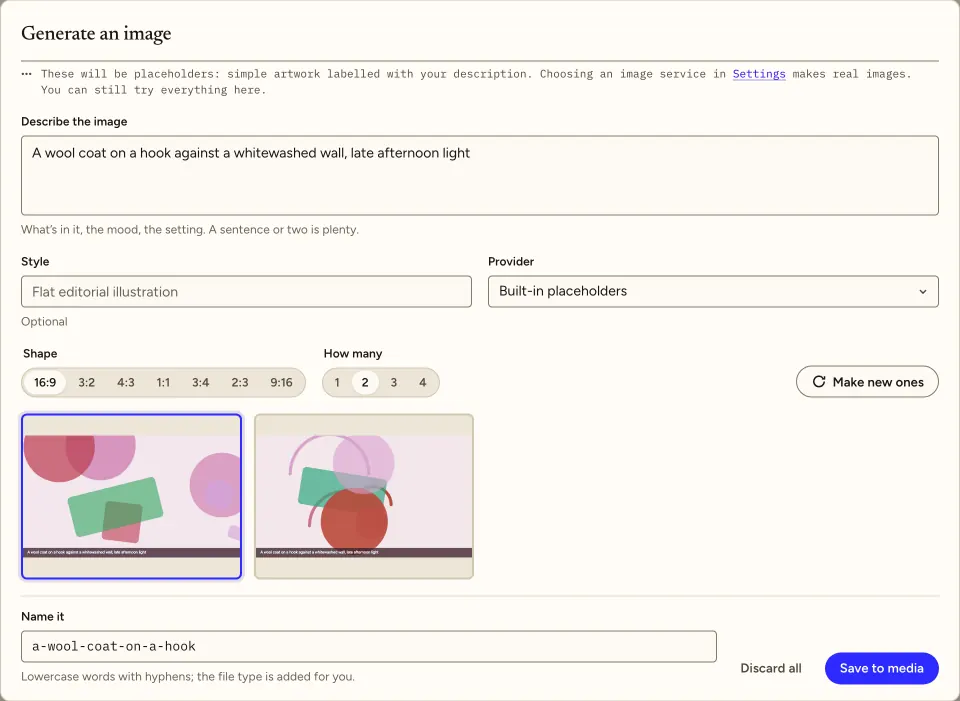
Without an image service, the Provider is Built-in placeholders: plain artwork labelled with your description, made on this computer, so you can try a layout before the real picture exists. Real images need a service chosen in App settings › Images — OpenAI, Google (Nano Banana) or OpenRouter — each with its own key and its own charges. What you type, and any reference pictures, are sent to that service.
Link to this section: Make a video
Generate a video works the same way, through the OpenRouter plugin. It needs OpenRouter's key (in Plugins), and the window shows what the video will cost before anything starts; OpenRouter charges the key's account. The docs haven't run video generation against the real service.
Link to this section: What can go wrong
- "That file is larger than 25 MB." Make it smaller and upload again.
- The window says the images will be placeholders. No image service is chosen; ask whoever looks after the app to choose one in App settings › Images.
- A picture shows on the page but not in Media. It may come from the site's design rather than its media folder; change it in the form, or ask the site's developer.