Documentation › Edit a site
Find your way around
The screens you'll use to change a site — the sites list, Site home, the editor and Proof — and where everything else lives.
For people who edit a site. Galley opens on a list of your sites; choose one and everything about it is in the sidebar on the left.
Link to this section: The editor
Open Pages (or any other collection) and choose a page. The editor shows three panes side by side:
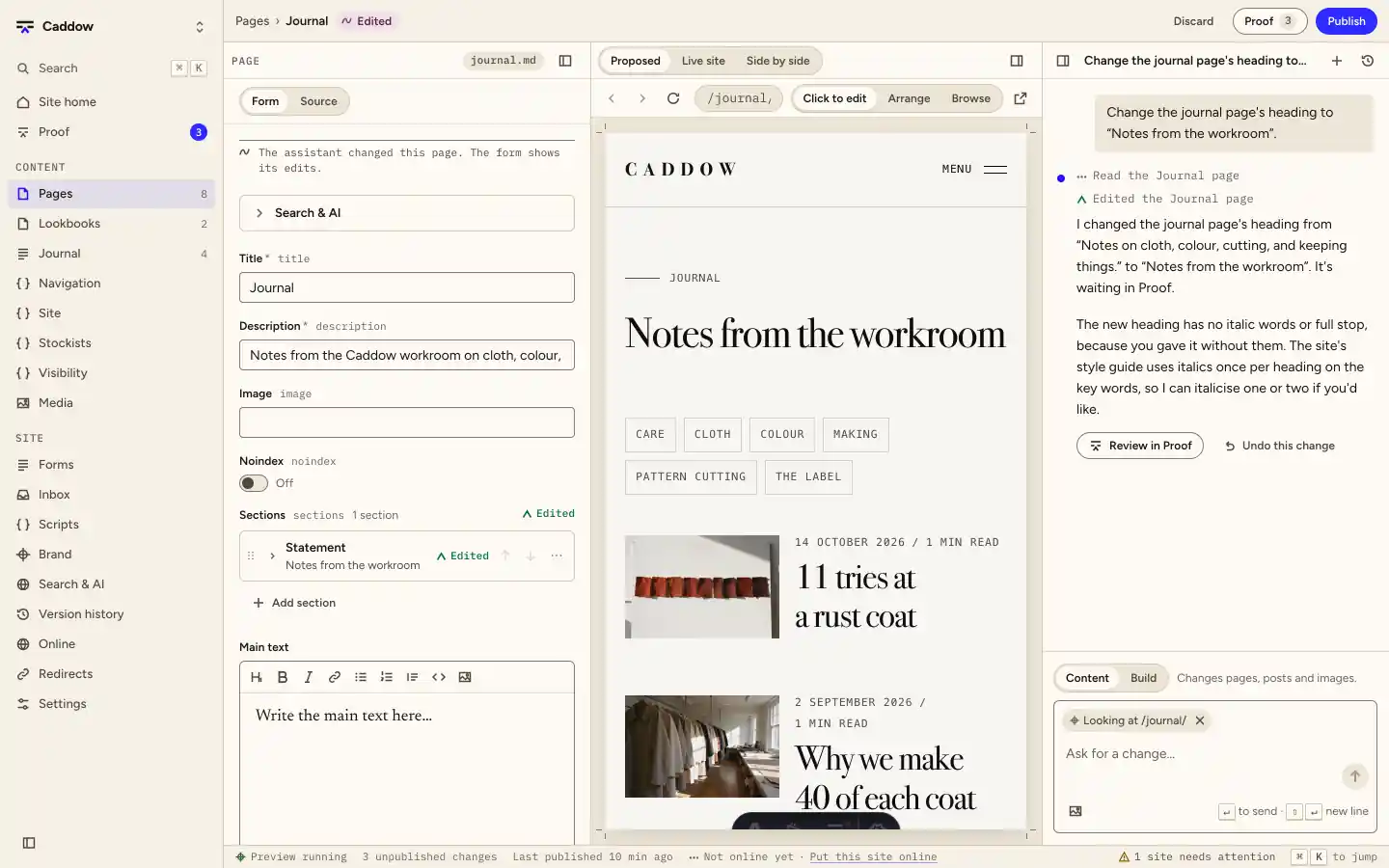
- The form (left): every field of the page, in the site's own words. Form and Source switch between the fields and the file itself.
- The page (middle): your site with your changes. Proposed, Live site and Side by side choose what you see; Click to edit, Arrange and Browse choose what a click does.
- The assistant (right): ask for a change in words.
Hide form, Hide preview and Hide assistant make room when you need it.
Link to this section: The top bar
Whatever screen you're on, the top right shows Discard, Proof with the number of changes waiting, and Publish. Nothing you change is live until you press Publish.
Link to this section: The sidebar
| Item | What it's for |
|---|---|
| Site home | What's waiting, what's on the site, and the quick ways in. |
| Proof | Every change waiting to be published — Check and publish. |
| Your collections (Pages, Journal…) | The site's content, in its own names. |
| Media | Pictures, videos and documents — Add images and video. |
| Forms, Inbox | Make a form, See who wrote in. |
| Scripts | Analytics and tags — Add Google Analytics. |
| Brand | Set up the brand. |
| Search & AI | Check how search and AI see the site. |
| Version history | Undo a publish. |
| Online, Redirects | Put the site online, Move a page without breaking links. |
| Settings | The site's addresses, publishing, preview and keys. |
The site's name at the top of the sidebar switches between sites. Search (⌘K, or Ctrl+K) jumps to any page, screen or site.
Link to this section: The status bar
The line along the bottom says whether the preview is running, how many changes are unpublished, when the site was last published and whether it is online.
Link to this section: If something looks wrong
- The middle pane is blank or says the preview stopped. The preview is your site running on this computer; open Site home and press Start preview, or see When something goes wrong.
- The assistant says "Connect the assistant." It needs a key; until someone adds one in App settings, you can still change everything in the form and on the page.