Documentation › Edit a site
Change text on the page
Click text on the page itself and retype it where it sits; when the same words appear in two places, choose which one you meant.
For people who edit a site. When you can see the words you want to change, clicking them is quicker than finding their field.
Link to this section: Retype text where it sits
- Open the page in the editor. Above the page, Click to edit is chosen.
- Point at the words. They get a dotted outline and a Click to edit tag.
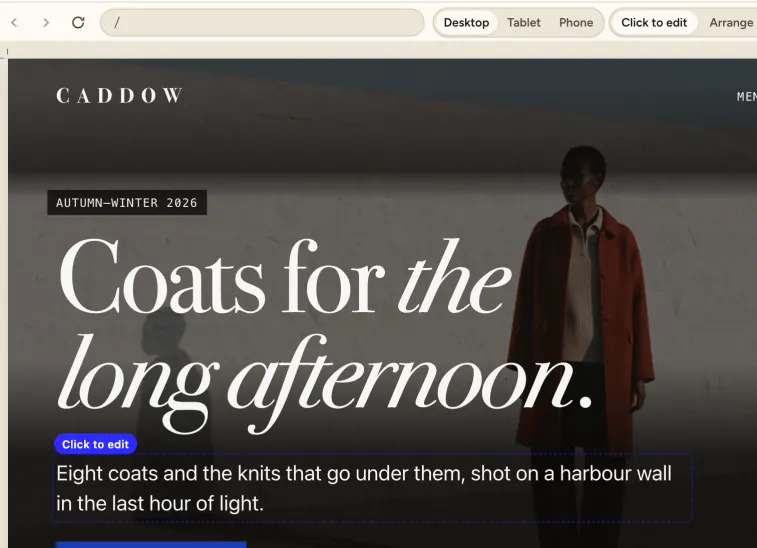
- Click, and type over the words.
- Press Enter to keep the change, or Escape to leave the words as they were.
The change is saved like any edit in the form: the field shows Edited and Proof counts it. Pictures say Click to change instead, and open Choose an image with the site's media.
To follow a link without editing it, use the Follow link button on its tag, or choose Browse above the page.
Link to this section: When it asks "Which one did you mean?"
Some words come from more than one place — the same menu item in the header and in the footer. Galley won't guess:
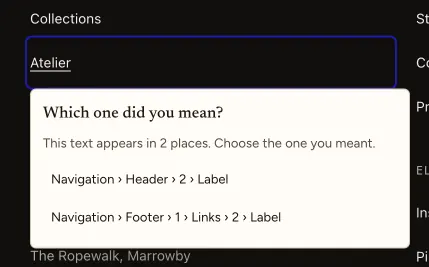
Choose the one you meant, then type.
Link to this section: What can go wrong
- Nothing outlines when you point. Make sure Click to edit is chosen, and that the page has finished loading.
- "This text is part of the site's design." It isn't stored with the page's content — it's in the site's design, or worked out from other details (a date, a reading time). Ask the assistant in Build mode, or the site's developer.
- A picture "isn't one of this page's own image fields". Change it in the form, in its section's image field.
Next: Ask the assistant.