Documentation › Look after a site
Look after many sites
Add every site you look after in one go, file them by client, see what each is waiting on, switch between them, and give a client's site its own keys.
For people who look after more than a handful of sites — an agency, a freelancer. One Galley keeps a list of all of them; each site stays in its own folder, with its own version history.
Link to this section: Add your sites
On the Sites screen (Your sites), press Add sites:
- Add sites from a folder… — choose the folder your sites live in. Galley looks one and two levels down, lists everything that looks like a site, and adds the ones you tick. Nothing in their folders changes.
- Open one folder…, Clone a site… or Create a new site… for one at a time.
Link to this section: File them by client
- New group names a client and gives it a colour.
- A site's ⋯ menu: Move to group…, Pin to the top, Add a note… ("Hesper is the contact; spring lookbook due in March"), Details…, Remove from this app… (its folder is never touched).
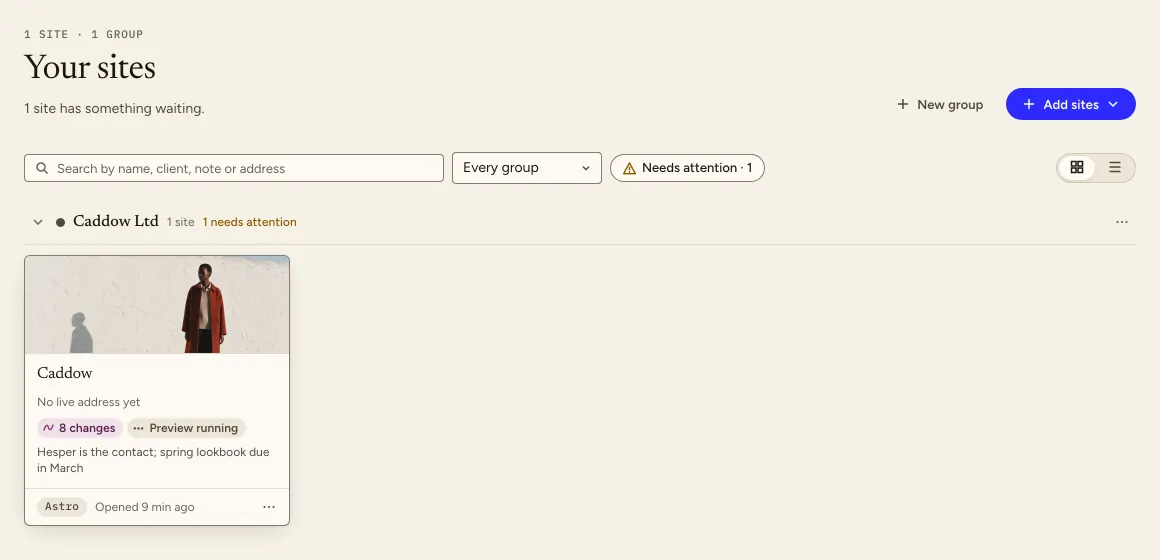
Groups, pins and notes are kept on this computer, not in any site.
Link to this section: See what each is waiting on
Each card shows chips, most urgent first: N changes waiting in Proof, N unread form submissions, versions not sent or not live, Folder missing, Preview running. A site with nothing waiting says Up to date. Needs attention shows only the sites with something waiting; search finds sites by name, client, note or address.
Link to this section: Switch between sites
The site's name at the top of the sidebar opens the switcher; ⌘K (Ctrl+K) finds a site by name too. Each site remembers where you were in it.
Link to this section: A client's site with its own keys
In a site's Settings › Connections, Use a key of this site's own… gives it its own assistant, image or hosting key, so that client is billed for their site's use and nothing else; Use an author of this site's own… sets the name its versions are published under. Each line says which key is in use and shows only its last four characters. Settings › Assistant use shows what the assistant has cost on that site.
Link to this section: Keeping the computer quick
Each site's preview runs on this computer. App settings › Previews sets how many run at once (3 by default) and when an unused one stops (after 20 minutes by default). A stopped preview starts again when you come back.
Link to this section: Not there yet
There are no user accounts or per-site permissions: anyone who can open this Galley can edit and publish every site in its list. Keys are kept in files only you can read, not yet in the system keychain. More: Self-hosting, Security.