Documentation › Edit a site
Undo a publish
Version history lists every published version of the site; undoing one adds a new version that reverses it, so nothing is ever erased.
For people who edit a site. Version history is the list of everything ever published on the site, newest first, with who published it and when.
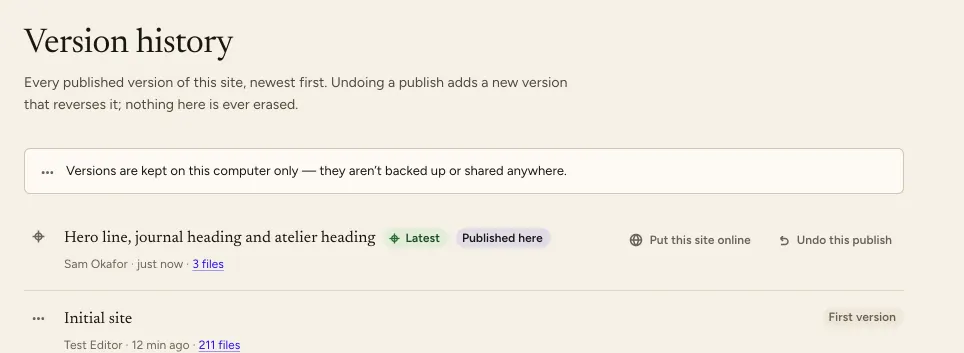
Link to this section: Undo a publish
- Open Version history in the sidebar.
- Beside the version, press Undo this publish.
- The window says what it takes back — Undo this publish? — and that it adds a new version on top. Press Undo this publish to go ahead, or Keep it.
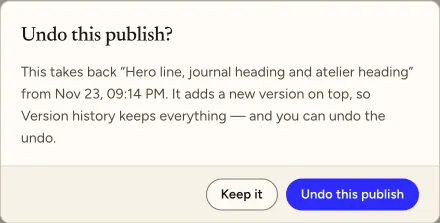
The undo is published straight away, as a new version called Undo "…" at the top of the list. Undoing that one puts the changes back. Each version's files link shows what it changed.
Link to this section: Undo before you publish
Not published yet? You don't need Version history: put changes back in Proof, or press Undo this change under an assistant reply.
Link to this section: What the notes on the list mean
- Latest — the newest version.
- Published here — published from this computer.
- Versions are kept on this computer only — the site isn't connected to a host or a shared copy yet, so nothing is backed up elsewhere. Ask the site's developer, or put the site online.
- Put this site online / Put live — for sites put online from Galley: the published version isn't live yet.
Link to this section: What can go wrong
- "That version can't be undone automatically, because later changes edited the same lines." Nothing was changed. Undo the later version first, or change the page back by hand.
- "That version combined two lines of work, so it can't be undone automatically." Ask the site's developer to undo it.