Documentation › Edit a site
Build a page from sections
Arrange a page on the page itself — select a section, drag it, add new ones from pictures of the site's own sections, and switch their options.
For people who edit a site. Arrange lets you put a page together from the sections the site already has, on the page itself. Status: Preview — it works, and is still being refined.
Every move is one small change to the page, waiting in Proof like any other.
Link to this section: Arrange a page
- Open the page in the editor and choose Arrange above the page. Show the Arrange panel opens the panel beside it.
- Select a section by clicking it. Its name and place appear (Photo and text 1/8), with a toolbar: drag handle, move up, move down, duplicate, remove, Options and Edit content.
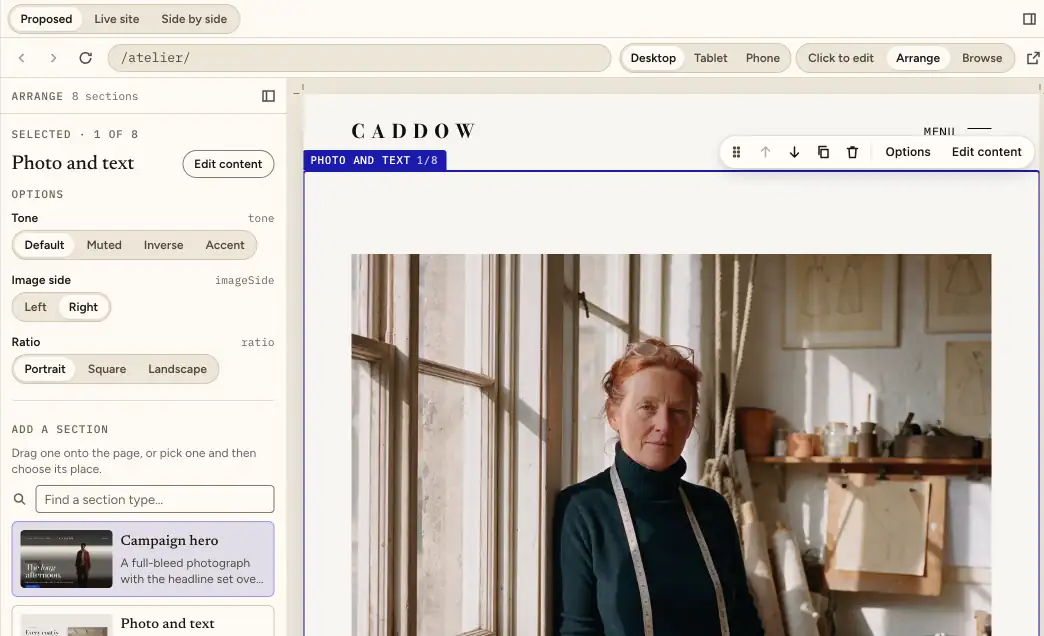
- Move a section by dragging its handle; a line shows where it will land. Escape leaves it where it was.
- Options — tone, alignment, which side the picture is on — are switches in the panel. The page updates a moment after each one.
- Add a section: drag its picture from the panel onto the page, or pick one and then choose its place. Find a section type… narrows the list.
- Edit content opens the section's words and pictures in the form.
Every move, duplicate and removal offers Undo. Nothing goes live until you publish.
Link to this section: From the keyboard
Tab to the page's sections, ↑ and ↓ to choose one, Alt+↑ / Alt+↓ to move it, Delete to remove it, Enter to edit its content, and ⌘Z (Ctrl+Z) to undo.
Link to this section: What it doesn't do
Arrange works with the site's own sections. It doesn't change spacing, columns or sizes, and it doesn't invent new kinds of section — a developer adds those (or the assistant, in Build), and they then appear in the panel.
Link to this section: What can go wrong
- "Sections can't be arranged on this page." The site hasn't marked its sections for Arrange. Add, move and remove them in the form instead, and point the site's developer to what Arrange needs.
- An option switches back by itself. The site refused the value; the panel says why.